
Side by Side Entry settings
From the item viewer's settings panel, you can define or update various settings associated to Side by Side Entry. Click on ‘Side by Side Entry Settings’ option from the settings panel to view the settings as shown in the below screen:
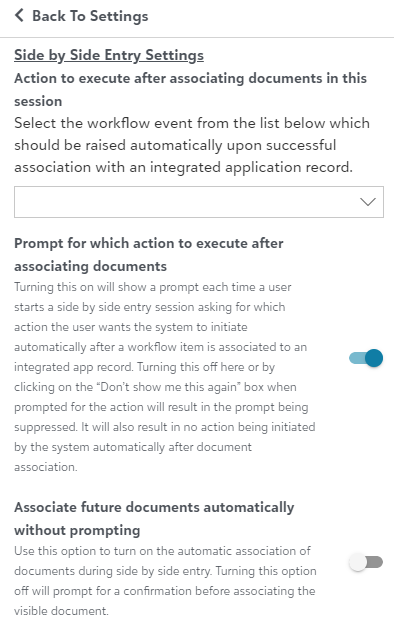
The "Side by Side Entry Settings" contains the following options:
- Action to execute after associating documents in this session: You can define the workflow event that should be auto-raised once you perform Side by Side Entry.
- Prompt for which action to execute after associating documents: When this option is enabled, you will get the prompt to select Workflow event should be raised after the Side by Side Entry.
Note: By default this option is enabled, but in case you had checked "Don't ask me again" then you can enable it from here.
Note: If you don’t select the Workflow event to raise automatically, the item will stay in the viewer until you manually raise the event from the field panel.
- Associate future documents automatically without prompting: When this option is enabled, the document will automatically get associated to the open Raiser's Edge without prompting any confirmation when clicked on Add Document from Records or Batch section in Raiser's Edge.
Note: By default, this option is disabled.